Invisible Characters on Mobile: Unmasking the iOS vs. Android Mystery
Ever tried to use a “blank” space for a unique username, format text in a specific way, or create an oddly structured message, only for that crucial invisible character to vanish into thin air the moment you hit send or paste? You’re not alone. This baffling phenomenon is a common source of frustration for many mobile users, and it often boils down to a fundamental difference in how iOS and Android devices handle these elusive elements. As an expert SEO technical writer, I’m here to demystify why some **invisible characters mobile** simply don’t work, with a particular focus on iOS’s unique challenges and, crucially, how to overcome them.
What Exactly Are Invisible Characters?
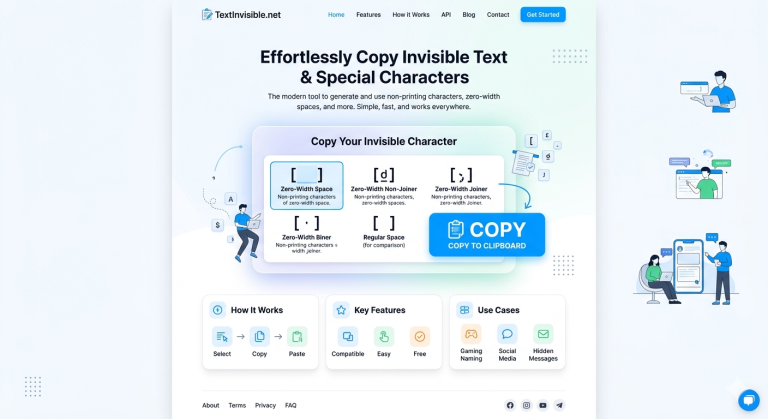
Before we dive into the OS-level differences, let’s clarify what we mean by “invisible characters.” These aren’t just spaces you type with your spacebar. Instead, they are legitimate Unicode characters designed to perform specific formatting or rendering functions without displaying any visible glyph. Examples include:
- Zero-Width Space (U+200B): A non-printing character that can be used to break lines in text without adding a visible space.
- Zero-Width Non-Joiner (U+200C): Prevents characters that would otherwise be joined from connecting (e.g., in some script languages).
- Zero-Width Joiner (U+200D): Forces characters that would not otherwise be joined to connect (e.g., for complex emojis or ligatures).
- Soft Hyphen (U+00AD): An optional hyphen that indicates where a word can be broken if it falls at the end of a line.
- Non-Breaking Space (U+00A0): Prevents an automatic line break at its position, often used to keep words together.
These characters have legitimate uses in typography, programming, and even creative online usernames, offering a subtle yet powerful way to control text display. However, their behavior on **invisible characters mobile** platforms can be wildly inconsistent.
The Android Experience: A Generally Smooth Ride
For Android users, working with invisible characters is often a straightforward affair. Android’s more open and flexible operating system architecture generally allows keyboards and applications to pass through a wider range of Unicode characters without much interference.
When you type or paste an invisible character on an Android device, the system typically treats it as any other character. Unless a specific app or a heavily customized keyboard actively filters it out (which is rare), these characters tend to function as intended. This means users often encounter fewer headaches when trying to implement unique formatting or usernames that rely on these subtle elements. The system prioritizes the transmission of the raw input, leaving the interpretation and rendering largely up to the application. This permissive approach makes Android a generally reliable platform for those needing to utilize the full spectrum of Unicode characters, including the invisible ones.
The iOS Conundrum: The Keyboard Stripping Issue
Now, let’s turn our attention to iOS, where the experience with **invisible characters mobile** can be considerably more challenging and, frankly, frustrating. The core problem lies in what’s known as the “iOS keyboard stripping issue.”
What Happens and Why?
Unlike Android, the default iOS keyboard and, at times, the underlying text input system, actively filter or “strip” certain invisible characters, particularly the zero-width ones like U+200B, U+200C, and U+200D. This means that if you try to type or even sometimes paste these characters directly into an input field using the standard iOS keyboard, they simply disappear or are replaced by a visible space.
Why does Apple implement such a restrictive approach? Several factors likely contribute to this design choice, aligning with Apple’s overall philosophy of a controlled and curated user experience:
- Security and Stability: Uncontrolled use of certain invisible characters could potentially be exploited for phishing, spam, or creating hard-to-parse malicious content. Stripping them reduces this attack surface.
- User Interface Consistency: Apple aims for a highly predictable and uniform user interface. Invisible characters, if misused, can lead to unpredictable text rendering, breaking layouts, or creating confusing gaps in text.
- Preventing Misuse/Spam: Many invisible characters are unfortunately co-opted for spam or to trick character limits in online forms. Stripping them is a preventive measure.
- Historical Design Choices: The iOS text input system has evolved with a strong emphasis on standard character input, and the filtering mechanism may be a legacy component designed to streamline common use cases.
The impact on users is clear: an inability to achieve specific formatting, frustration when unique usernames or social media handles can’t be replicated, and a general sense of confusion as to why a seemingly valid character simply vanishes.
How to Bypass the iOS Keyboard Stripping Issue
Despite the challenges, there are effective strategies to circumvent the iOS keyboard’s stripping behavior and successfully use **invisible characters mobile** on your Apple device. The key insight is that while the iOS *keyboard* may strip them, the iOS *system* itself can often render and store these characters if they bypass the keyboard’s input filter.
1. Copy-Pasting from a Reliable Source (The Most Effective Method)
This is, by far, the most reliable and recommended method. Instead of trying to type the invisible character, find it on a trusted source and copy it.
- From a Website: Many websites are dedicated to generating or listing invisible Unicode characters. Search for “invisible character generator” or “zero-width space copy” online. Once you find the character, copy it directly from the webpage.
- From a Dedicated App: There are mobile apps specifically designed to create and manage special Unicode characters. These apps typically bypass the default keyboard’s limitations.
- From Another Device/OS: If you have access to an Android device or a desktop computer, you can type/paste the invisible character there, send it to yourself (e.g., via email, messaging app), and then copy it from the received message on your iOS device.
- Using Apple Notes: Once you’ve successfully copied an invisible character, you can paste it into Apple Notes. Notes often preserve these characters, allowing you to copy them again later without needing to find an external source.
Why it works: When you copy and paste a character, you’re essentially telling iOS to accept a pre-existing piece of text data, bypassing the real-time input filtering of the keyboard.
2. Using Custom Keyboards (with Caveats)
While the default iOS keyboard is the primary culprit, some third-party keyboards (like Gboard or SwiftKey) might handle certain invisible characters differently.
- Experiment: Download a popular third-party keyboard and test if it allows you to input or paste the desired invisible character more reliably.
- Caveats: Custom keyboards introduce potential privacy concerns as they often require “full access.” Also, their support for esoteric invisible characters can be inconsistent and may change with updates.
3. Utilizing System-Level Text Replacement (for Frequent Use)
For invisible characters you use frequently, iOS’s built-in Text Replacement feature can be a lifesaver.
- Set it Up: Go to Settings > General > Keyboard > Text Replacement.
- Create a Shortcut: Tap the ‘+’ icon. In the “Phrase” field, paste the invisible character (you’ll need to copy it from a reliable source first). In the “Shortcut” field, type a memorable, short phrase (e.g., “zwsp”).
- How to Use: Now, whenever you type “zwsp” (or your chosen shortcut), it will auto-replace with the invisible character.
This method relies on successfully copying the character *once* and then leveraging iOS’s system-wide text engine, which is less restrictive than the keyboard’s direct input.
4. Character Map Apps/Tools
Several apps in the App Store specialize in Unicode characters. These apps often provide a user-friendly interface to browse, search, and copy a vast array of symbols, including many invisible ones. They act as a reliable “source” for copying the characters you need.
Why the Difference? An OS-Level Deep Dive
The fundamental divergence in how **invisible characters mobile** are handled between iOS and Android stems from their core operating system philosophies.
* Android’s Approach: Openness and Flexibility. Android, being more open-source and customizable, provides developers and users with greater control over system components, including input methods. It generally prioritizes the raw data input and allows apps to interpret and render characters as they see fit. This design fosters versatility but sometimes comes at the cost of strict UI consistency or system-wide enforcement of certain behaviors.
* iOS’s Approach: Control and Curated Experience. Apple’s iOS ecosystem is meticulously controlled, with a strong emphasis on security, uniformity, and a highly polished user experience. The default keyboard is deeply integrated into this controlled environment, and its filtering mechanisms are part of Apple’s strategy to maintain system integrity and a predictable interface. While this provides a robust and secure experience, it often limits user flexibility in niche areas like advanced Unicode character input.
The Future of Invisible Characters on Mobile
It’s unlikely that Apple will completely abandon its filtering of invisible characters in the near future, given its long-standing design philosophy. The current workarounds are effective because they exploit the distinction between the keyboard’s input stripping and the system’s ability to render already-present characters. Therefore, for **invisible characters mobile** on iOS, learning to copy and paste from reliable sources will remain your most powerful tool.
Conclusion
The mystery of disappearing invisible characters on mobile devices, particularly iOS, is a common technical quirk rooted in fundamental OS design differences. While Android typically offers a more permissive environment, iOS’s default keyboard actively strips certain characters for reasons of security, stability, and UI consistency.
However, armed with the knowledge that the iOS system *can* render these characters if they bypass the keyboard’s direct input, you now have powerful bypass methods at your disposal. Remember, when dealing with **invisible characters mobile** on your iPhone or iPad, copying and pasting from a trusted external source is your most reliable solution, allowing you to harness the subtle power of these elusive Unicode elements.