Mastering the Art of the Invisible: How to Send Blank Emails in Gmail & Outlook (No Subject, No Body)
Ever found yourself in a peculiar situation where you needed to **send a blank email**? Not just an email with a few spaces, but a truly empty message – no subject, no body, just the recipient and a send button clicked? It sounds simple, yet anyone who’s tried knows the frustrating “Please enter text” error message that email clients like Gmail and Outlook throw your way. But what if we told you there’s a trick, a clever workaround that bypasses these validation rules, allowing you to send emails that are completely devoid of visible content?
As an expert SEO technical writer, I’m here to demystify this quirky challenge. In this comprehensive guide, we’ll walk you through the precise steps to send these elusive blank emails in both Gmail and Outlook, and more importantly, explain *why* regular spaces just won’t cut it. Get ready to unlock a new level of email communication – or lack thereof!
The “Please Enter Text” Conundrum: Why Regular Spaces Fail
Before we dive into the solutions, let’s understand the problem. When you compose an email in Gmail or Outlook, both clients have built-in validation mechanisms designed to ensure you’re sending a meaningful message. They expect *some* content, whether in the subject line or the body. If you simply type a few spaces and hit send, the email client interprets these as “empty” content.
Think of it this way: a regular space character (U+0020) is still a character, but from a content validation perspective, it’s often normalized or trimmed, essentially becoming nothing. The system doesn’t see it as substantive data, triggering the “Please enter text” or “Can’t send empty message” error. This is a deliberate design choice to prevent accidental empty sends and ensure basic message integrity. To bypass this, we need a character that *is* content, but visually indistinguishable from nothing.
How to Send a Blank Email in Gmail
Sending a truly blank email in Gmail requires a specific character that the system recognizes as content but displays as an empty space. The hero of our story is the “Non-Breaking Space” (NBSP).
Step-by-Step Guide for Gmail:
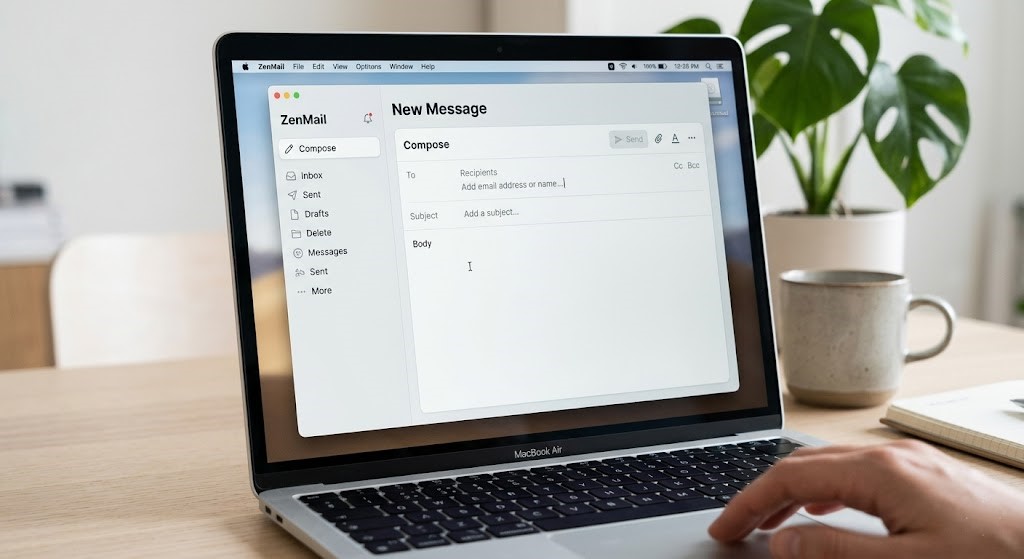
- Open Gmail and Compose a New Email: Log into your Gmail account and click the “Compose” button, usually found on the left sidebar.
- Enter the Recipient: Type the email address of the person you wish to send the blank email to in the “To” field.
- Leave the Subject Line Blank (Initially): You can try leaving the subject line completely empty. Gmail often allows a blank subject if there’s content in the body. However, for a *truly* blank email (no subject, no body), you’ll need the trick for both.
- The Body Trick: Inserting a Non-Breaking Space:
- Click into the message body area.
- For Windows Users: Hold down the Alt key and type 0160 on your numeric keypad (make sure Num Lock is on). Release the Alt key. You won’t see anything, but the invisible character has been inserted.
- For Mac Users: Hold down the Option key and press the Spacebar. Again, you won’t see anything visually.
- Universal Copy-Paste Method: If the above methods are tricky, you can always copy a non-breaking space from a source (like this one: <– copy the space between these arrows) and paste it into the email body.
This single invisible character is enough to fool Gmail into thinking there’s content.
- The Subject Trick (If Needed): If you want the subject line to *also* appear blank (which is often the case when you want to **send a blank email**), repeat the non-breaking space insertion method (Alt+0160 on Windows, Option+Space on Mac, or copy-paste) into the subject line as well.
- Send Your Blank Email: With the recipient entered and the invisible non-breaking space in both the subject (if desired) and body, click the “Send” button. Gmail will process it without error.
The recipient will receive an email that, at first glance, appears completely empty in both the subject and body fields.
How to Send a Blank Email in Outlook
Outlook, whether the desktop application or Outlook.com, employs similar validation rules to Gmail. Therefore, the same non-breaking space trick is highly effective here as well.
Step-by-Step Guide for Outlook:
- Open Outlook and Start a New Email: Launch your Outlook application or go to Outlook.com and click “New email” or “New message.”
- Add the Recipient: Enter the email address of the intended recipient in the “To” field.
- The Body Trick: Inserting a Non-Breaking Space:
- Click into the message body field where you would normally type your content.
- For Windows Users: Hold down the Alt key and type 0160 on your numeric keypad (ensure Num Lock is active). Release Alt. An invisible character is now present.
- For Mac Users: Press Option + Spacebar.
- Universal Copy-Paste Method: As with Gmail, you can copy a non-breaking space (like this: <– copy the space between these arrows) and paste it into the body.
This single non-breaking space satisfies Outlook’s content requirements.
- The Subject Trick (If Needed): For a completely blank subject line, perform the same non-breaking space insertion (Alt+0160 on Windows, Option+Space on Mac, or copy-paste) into the “Add a subject” field.
- Send Your Blank Email: With the recipient set and the invisible non-breaking space in place for both subject and body, click “Send.” Outlook will allow the message to go through without triggering the “Please enter text” error.
The recipient’s Outlook client will display an email with no visible subject and an empty message body.
The Magic Behind the Blank: Understanding Non-Breaking Spaces
What exactly is this mystical “Non-Breaking Space” (NBSP) character, and why does it work where regular spaces fail?
What is a Non-Breaking Space?
A non-breaking space is a distinct character entity. In HTML, it’s represented as . Unlike a regular space (which browsers and email clients often collapse or ignore for validation purposes if it’s the *only* content), an NBSP is treated as a legitimate, non-collapsible character. It has a width, occupies a space, and critically, it’s considered *content* by email client validation routines.
- It’s a Valid Character: Email clients and servers see it as a legitimate character, not an absence of data. This satisfies the “Please enter text” requirement.
- It’s Visually Invisible: To the human eye, it looks exactly like a regular space, meaning the email appears blank.
- It Prevents Line Breaks: Historically, its primary use is in typography to prevent two words from being separated by a line break (e.g., “10 km” – you wouldn’t want “10” on one line and “km” on the next). In our case, its “non-empty” characteristic is what’s key.
By using an NBSP, you’re essentially providing a tiny, invisible placeholder that satisfies the email client’s need for content without actually adding any visible information. It’s a clever hack that leverages the technical definition of “content.”
When Would You Need to Send a Blank Email? Practical Use Cases
While seemingly niche, the ability to **send a blank email** can be surprisingly useful in several scenarios:
- Testing Email Systems: Developers or IT administrators might send blank emails to test server configurations, mail flow, or spam filters without introducing unnecessary data.
- Triggering Automated Workflows: Some automation tools or scripts might be designed to respond to the mere receipt of *any* email, regardless of content. A blank email serves as a silent trigger.
- Simple “Ping” or Availability Check: If you just need to discreetly notify someone that you’re thinking of them, available, or checking if their inbox is active, a blank email can serve as a subtle “ping” without requiring a reply or explanation.
- Discreet Notifications: In specific private or sensitive contexts, a blank email might be pre-arranged as a signal, conveying a message (“I’ve arrived,” “I’m ready”) without any actual text that could be intercepted or misinterpreted.
- Privacy and Anonymity: While not truly anonymous, a blank email leaves very little trail in terms of conversational content, offering a minimal footprint.
- Placeholder for Future Content: In some unique collaborative scenarios, a blank email might be used as a placeholder in a thread, signaling that content is coming soon or that a task related to that email is pending.
Troubleshooting Common Issues
If you’re still encountering the “Please enter text” error, here are a few things to double-check:
- Ensure Num Lock is On (Windows Alt Codes): For Alt+0160 to work on Windows, your numeric keypad’s Num Lock must be active.
- Use the Numeric Keypad: The numbers must be typed on the dedicated numeric keypad, not the row of numbers above the QWERTY keyboard.
- Verify the Character: The easiest way to confirm you’ve entered the correct character is to copy the NBSP from a reliable source and paste it.
- Browser or Client Updates: While rare, very old or very new beta versions of email clients might behave slightly differently. Ensure your client is up to date.
Conclusion
The seemingly impossible task of sending a truly blank email with no subject and no body is not only possible but surprisingly straightforward once you know the secret: the non-breaking space. By understanding why email clients validate content and how a specific invisible character bypasses these checks, you now have the power to **send blank email** messages in Gmail and Outlook with ease.
Whether for technical testing, discreet signaling, or simply satisfying a peculiar need, mastering this trick adds a unique tool to your digital communication arsenal. No more frustrating “Please enter text” errors – just clean, empty emails, ready to serve their subtle purpose.