Unlock the Secrets: Make Your Wi-Fi Name (SSID) Invisible with Unicode
In a world saturated with digital noise, wouldn’t it be nice to have a little corner of the internet that’s just for you – a Wi-Fi network that’s there, but not overtly visible to every casual scanner? Imagine your neighbors scrolling through a dozen Wi-Fi networks and completely missing yours, not because it’s hidden, but because its name is, well, invisible. This isn’t about traditional SSID hiding; it’s about a clever trick using Unicode characters to create an invisible wifi name that baffles most displays and adds a touch of digital mystique to your home network.
As an expert SEO technical writer, I’m here to guide you through the fascinating world of how routers handle Unicode and provide a step-by-step guide to achieving this unique network stealth. Whether you’re aiming for enhanced privacy, a cleaner network list, or simply want to impress your tech-savvy friends, mastering the art of the invisible SSID is a project worth undertaking.
Understanding Your Router, SSIDs, and the Magic of Unicode
Before we dive into the “how,” let’s clarify the “what.” An SSID (Service Set Identifier) is simply the name of your Wi-Fi network – the friendly label like “MyHomeNetwork” or “CoffeeShop_FreeWiFi” that appears when you scan for available connections. Traditionally, SSIDs are composed of standard ASCII characters (letters, numbers, basic symbols).
Most routers broadcast their SSID, making it discoverable to nearby devices. While many routers offer a “hide SSID broadcast” option, this method often provides a false sense of security, as the SSID can still be detected by specialized tools. Our method for an invisible wifi name takes a different approach: it leverages how routers and devices interpret a broader set of characters known as Unicode.
How Routers Handle Unicode
Unicode is a universal character encoding standard that represents virtually all written languages in the world. Unlike ASCII, which has a limited set of characters, Unicode can represent tens of thousands of different symbols, including emojis, special characters, and even characters that are designed to be “invisible” or have zero width.
When you set an SSID, your router’s firmware is responsible for processing that name and broadcasting it. Older or simpler router firmware might only support ASCII characters for the SSID. However, many modern routers are built to be more flexible and can handle Unicode. This flexibility is where our trick lies:
- Standard ASCII SSIDs: Displayed clearly by all devices.
- Unicode SSIDs: Some routers will accept them. The magic happens when we use specific Unicode characters that are non-printing or zero-width. When a device tries to display an SSID made entirely of these characters, it often shows up as blank, an empty string, or simply doesn’t appear in the network list because there’s nothing visually discernable to render.
It’s important to note that the success of this method largely depends on your router’s firmware and the Wi-Fi client’s operating system. Newer devices and routers are more likely to support Unicode broadly, but their *interpretation* of zero-width characters can vary.
Why Go Invisible? The Perks of a Hidden Wi-Fi Name
Creating an invisible wifi name isn’t just a party trick; it offers several practical advantages:
- Reduced Clutter: Your network won’t contribute to the long list of visible Wi-Fi networks in crowded areas.
- Casual Obscurity: While not a security silver bullet, it adds a layer of obscurity. The average person won’t see your network, making it slightly less prone to casual attempts at access.
- Exclusivity: Only those who know the exact “invisible” SSID can connect, making your network feel more private and exclusive.
- A Unique Tech Project: For the technically curious, it’s a fun and rewarding way to experiment with network settings and Unicode.
Remember, this method is about making the SSID visually unidentifiable, not about encrypting your traffic. Always use strong WPA2 or WPA3 encryption for true network security.
Step-by-Step Guide: Crafting Your Invisible Wi-Fi Name
Ready to make your Wi-Fi network truly unique? Follow these steps carefully to set up your invisible wifi name.
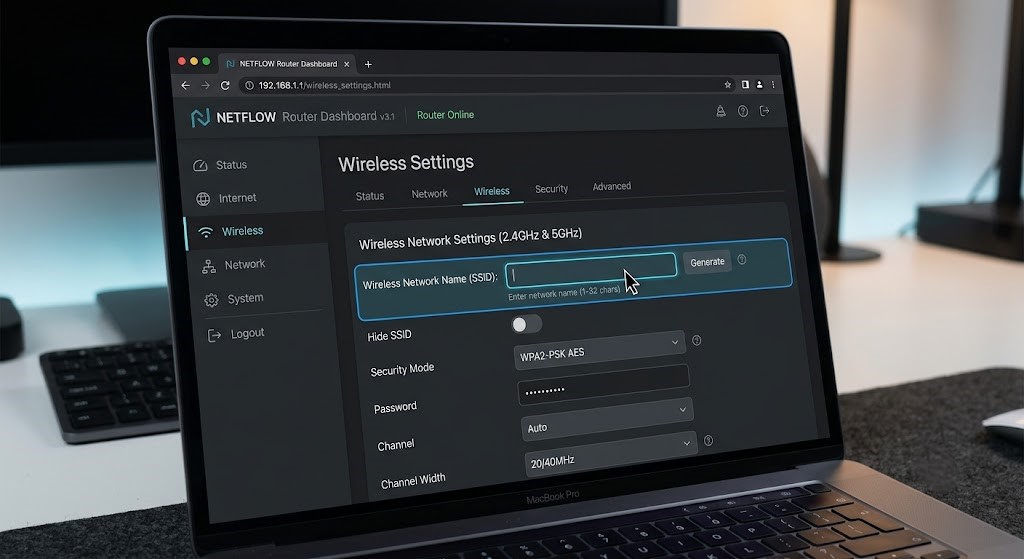
Step 1: Access Your Router’s Administration Panel
This is where all the magic begins. You need to log in to your router’s control center.
- Connect to Your Router: Ensure your computer or mobile device is connected to your router, either via Wi-Fi (before you change the SSID) or an Ethernet cable.
- Open a Web Browser: Launch Chrome, Firefox, Safari, or any other web browser.
- Enter Router IP Address: Type your router’s IP address into the address bar and press Enter. Common IP addresses include
192.168.1.1,192.168.0.1, or192.168.1.254. If none of these work, check your router’s manual or look for the “Default Gateway” IP in your network settings. - Login: Enter your router’s username and password. If you haven’t changed them, these are usually found on a sticker on the router itself, or in the manual (e.g., admin/admin, admin/password).
Step 2: Navigate to Wireless Settings
Once logged in, you need to find the section responsible for your Wi-Fi network’s configuration.
- Look for menus like “Wireless,” “Wi-Fi Settings,” “Network Settings,” “WLAN,” or similar.
- You might see options for 2.4GHz and 5GHz bands. You’ll need to apply the invisible SSID to each band separately if you want both to be invisible.
- Locate the field where you currently see your SSID (network name).
Step 3: Craft Your Unicode SSID for Invisibility
This is the core of the trick. We’ll use Unicode characters that are designed to have zero width, meaning they take up space in the data but don’t display anything visually.
- The Go-To Character: Zero Width Space (U+200B)
This is the most reliable character for creating an invisible wifi name. It’s a valid character, but it has no visual representation. When a display tries to render an SSID made purely of these, it often shows up as blank. - How to Obtain the Zero Width Space:
- Copy-Paste: The easiest way is to copy it from a reliable source. Here’s one to copy: (copy the empty space between the quotes). Or you can copy it from a generator like emptycharacter.com.
- HTML Entity: You can use its HTML entity representation:
​or​. Some router interfaces might interpret this directly, but copying the actual character is often more successful.
- Inputting the Invisible SSID:
- In the SSID field of your router’s wireless settings, paste multiple zero-width spaces. I recommend at least 3-5 of them (e.g., paste into the field). The more you paste, the more “data” is there for the SSID, reducing the chance of the router rejecting it as an empty string.
- Avoid mixing with visible characters if your goal is complete visual invisibility in network lists. If you want a name that’s just harder to read, you could embed these within a normal name (e.g.,
MyNetwork), but for true invisibility, stick to zero-width characters only.
Step 4: Apply and Save Changes
Once you’ve entered your chosen invisible Unicode characters into the SSID field:
- Click the “Apply,” “Save,” or “OK” button.
- Your router will likely prompt you to confirm the changes and may reboot. This is normal.
- Be prepared for a temporary disconnection as your router reconfigures.
Step 5: Connect to Your (Now Invisible) Wi-Fi
Connecting to a network with an invisible wifi name requires a manual approach, as it won’t appear on standard network lists.
- On Windows: Go to “Settings” > “Network & Internet” > “Wi-Fi” > “Manage known networks” > “Add a new network.”
- On macOS: Click the Wi-Fi icon in the menu bar > “Join Other Network…”
- On Android: Go to “Settings” > “Network & internet” > “Internet” > “Add network.”
- On iOS: Go to “Settings” > “Wi-Fi” > “Other…”
- Enter the SSID Exactly: This is critical. You must paste the exact sequence of zero-width Unicode characters you used for your SSID into the “Network name” or “SSID” field. This often means going back to your source (e.g., the webpage you copied from) and copying the same sequence again.
- Choose Security Type: Select the correct security type (e.g., WPA2-PSK) and enter your Wi-Fi password.
- Connect: Your device should now connect to your invisible network!
Troubleshooting and Important Considerations
While making your SSID invisible with Unicode is a cool trick, it’s not without its quirks:
- Router Compatibility is Key: Not all routers support Unicode SSIDs, or they might interpret zero-width characters differently. If your router rejects the SSID or displays strange characters, it might not be compatible.
- Device Compatibility: Older devices or specific operating systems might struggle to connect to or even detect a Unicode-based invisible wifi name. You may need to revert if you experience widespread connectivity issues.
- True Security is Paramount: This technique offers obscurity, not robust security. Always use a strong, unique WPA2 or WPA3 password for your network. Your Wi-Fi traffic is still encrypted, but a determined attacker could still uncover your network’s presence.
- If You Get Locked Out: If you change the SSID and can’t reconnect, or if your router acts strangely, you might need to perform a factory reset on your router. This will revert all settings to default, including the SSID, allowing you to start over. (Look for a small reset button on your router).
Embrace the Invisible!
Creating an invisible wifi name using Unicode is a fantastic way to personalize your network, enhance its privacy through obscurity, and add a touch of advanced customization. It’s a testament to the versatility of modern networking standards and a fun project for anyone looking to go beyond the default settings.
Experiment with different numbers of zero-width spaces, test connectivity with various devices, and enjoy the unique satisfaction of having a Wi-Fi network that’s there, but not quite seen. Share your experiences in the comments below – did your router accept the challenge? How did your devices react to your new invisible network?