Mastering the Invisible: How to Leave a Blank Review on Amazon or Google Maps
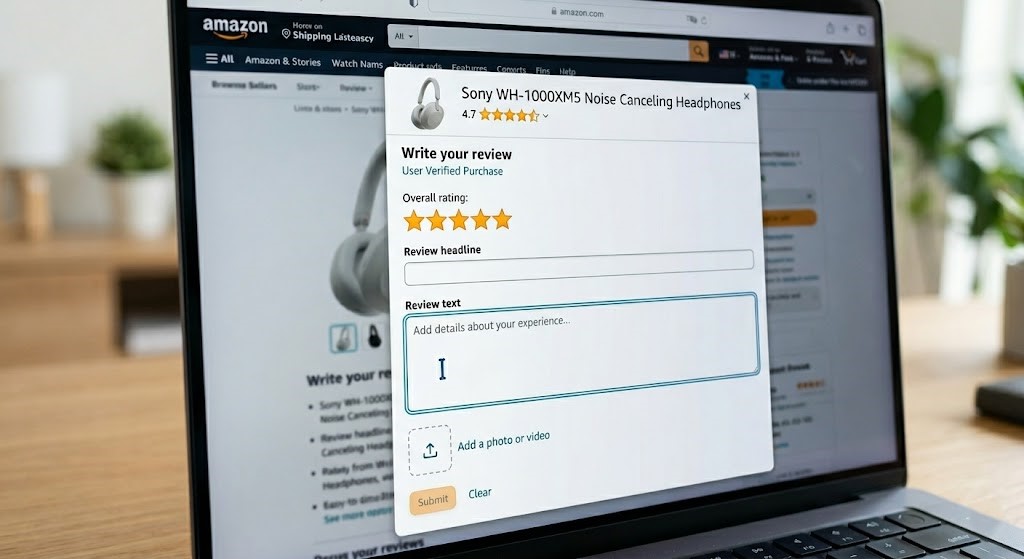
Ever found yourself in a situation where you want to leave a star rating on Amazon or Google Maps, but have absolutely nothing to say? Perhaps you want to signal a subtle dissatisfaction without penning a scathing paragraph, or maybe you just appreciate the product/service enough for a rating but don’t feel inspired to write. The natural inclination is to just leave the review text field empty. But as you’ve likely discovered, those platforms are smarter than that. Try to submit a truly empty review, and you’ll be met with an error message: “Please enter your review,” or “Your review is too short.”
This common frustration leads many to believe a blank review is impossible. But what if we told you there’s a clever, often overlooked technique that allows you to bypass these restrictions? It involves a fascinating dive into the world of invisible characters – specifically, the zero-width character. This guide will walk you through the precise method for a successful **blank review copy paste**, enabling you to submit reviews that appear completely empty to the human eye, yet satisfy the system’s requirements.
Why Regular Spaces Just Won’t Cut It
Before we reveal the trick, let’s understand why your initial attempts might have failed. When you try to submit an empty review, or even one filled with regular spaces, the review platform’s validation system kicks in. These systems are designed to ensure meaningful content. They typically:
- Trim Whitespace: Most input fields automatically remove leading or trailing spaces. So, if you type ” ” (three spaces), the system often sees it as an empty string.
- Minimum Character Count: There’s usually a predefined minimum length for reviews (e.g., 10 or 20 characters). A single space, even if not trimmed, rarely meets this requirement.
- Content Validation: The system might even go a step further, checking for actual alphanumeric content, not just characters.
Because of these robust checks, simply hitting the spacebar multiple times won’t work. The system interprets those as functionally empty, triggering the “too short” or “please enter text” error. This is where our invisible allies come into play.
The Secret Weapon: Zero-Width Characters
The key to achieving a successful **blank review copy paste** lies in Unicode’s fascinating collection of zero-width characters. These are special characters that, while being legitimate characters in the eyes of a computer, have no visual representation. They occupy zero width on a screen, meaning you can’t see them, print them, or even easily detect them without special tools.
Think of them as invisible ink for your digital text fields. When you paste one or more of these into a review box, the system sees valid character data and processes it as such. Since it’s no longer an “empty” string or just “whitespace,” it bypasses the validation rules that regular spaces fall victim to.
The most commonly used zero-width characters for this purpose include:
- Zero Width Space (U+200B): Acts like an invisible space, allowing a line break to occur.
- Zero Width Non-Joiner (U+200C): Prevents characters from joining where they would otherwise (e.g., in some cursive scripts).
- Zero Width Joiner (U+200D): Forces characters to join where they wouldn’t normally.
For our purpose, any of these can work, but the Zero Width Space is often the simplest and most effective. We’ll provide you with a string of these characters that you can easily copy and paste.
How to Perform the Blank Review Copy Paste Trick: Step-by-Step
This method is incredibly straightforward once you have the right “invisible” text.
Step 1: Obtain Your Invisible Characters
To ensure success and provide a robust string that meets any potential minimum character length, copy the following sequence of zero-width characters. Make sure you select and copy the entire block between the quotation marks, but **without** the quotation marks themselves:
“”
This string contains a mix of Zero Width Space, Zero Width Non-Joiner, and Zero Width Joiner characters. To you, it looks like an empty string, but to the computer, it’s 12 distinct characters.
Step 2: Navigate to Your Desired Review Platform
Whether you’re targeting Amazon or Google Maps, the process from here is quite similar.
Leaving a Blank Review on Amazon
1. Find the Product: Go to the Amazon product page for the item you wish to review.
2. Initiate Review: Scroll down to the “Customer reviews” section and click the “Write a customer review” button.
3. Select a Star Rating: This is crucial. You still need to provide a star rating (1 to 5 stars). A blank review only applies to the text portion.
4. Paste the Invisible Characters: Click into the “Add a written review” text box (or “Write your review”). Now, paste the invisible characters you copied in Step 1. It will still look empty.
5. Submit Your Review: Click the “Submit” or “Submit review” button.
If successful, you will see a confirmation that your review has been submitted. When you view your review on the product page, it will appear with your selected star rating and absolutely no visible text!
Leaving a Blank Review on Google Maps
1. Search for the Location: Open Google Maps and search for the business or location you want to review.
2. Initiate Review: In the business’s information panel, scroll down and click the “Write a review” button, or look for the stars directly under the business name.
3. Select a Star Rating: Just like Amazon, you must select a star rating (1 to 5 stars).
4. Paste the Invisible Characters: Click into the “Describe your experience” text box. Paste the invisible characters you copied in Step 1. The box will appear empty.
5. Post Your Review: Click the “Post” button.
Google Maps will confirm your review submission. When others view your review, they’ll see your star rating with no accompanying text – a truly blank review!
Important Considerations and Best Practices
- Star Rating is Mandatory: Remember, the “blank” aspect only applies to the written text. You absolutely *must* select a star rating for your review to be valid.
- Ethical Use: While this technique allows for a specific type of feedback, consider its impact. A blank review can be ambiguous. It might signal dissatisfaction without explanation, or simply a lack of words. Use it thoughtfully.
- Platform Updates: Online platforms are constantly evolving. While this trick works reliably at the time of writing, review systems might eventually catch on to zero-width characters. However, as these characters are integral to Unicode, completely blocking them without affecting other functionalities (like text rendering in certain languages) is challenging.
- Focus Keyword Reinforcement: This entire method hinges on the effectiveness of a proper **blank review copy paste** of those specific zero-width characters. Without them, you’re back to square one with error messages.
- Not for Spam: This technique is for subtle, legitimate feedback, not for spamming or attempting to manipulate review counts. Misuse could lead to your reviews being removed or your account flagged.
Conclusion: The Power of Invisible Text for Your Reviews
You no longer have to be frustrated by review platforms demanding text when you have none to give. By understanding the simple distinction between regular spaces and zero-width characters, you gain the power to perform a successful **blank review copy paste**. This elegant solution bypasses typical validation checks, allowing you to leave a rating on Amazon or Google Maps that is truly blank in its textual content.
So go ahead, try this clever trick. Whether you’re testing, subtly signaling your opinion, or simply prefer to let the stars do all the talking, you now have the knowledge to master the art of the invisible review. Happy (blank) reviewing!