Master the Art of Digital Stealth: How to Create Invisible Windows Folders with Invisible Names & Icons
In the fast-paced digital world, keeping your files organized and private is more important than ever. Whether you’re safeguarding sensitive personal documents, decluttering a busy desktop, or simply want a discreet space for ongoing projects, the need for effective folder management is universal. While Windows offers various ways to hide files, did you know there’s an age-old trick that makes folders truly vanish from plain sight, complete with an hide window folders name and icon?
This isn’t about encrypting data or diving deep into security settings; it’s about a clever, visual camouflage technique that’s been around for ages but continues to be highly searched and incredibly useful. We’re talking about combining the classic Alt+0160 numpad trick with a dash of Unicode magic to create truly stealthy storage spaces. Ready to become a digital ninja? Let’s dive in!
Why Go Invisible? The Unseen Benefits of a Stealthy Folder
Before we unveil the trick, let’s consider why you might want to hide a folder in plain sight:
- Enhanced Privacy: Keep personal photos, journals, or financial documents away from prying eyes (or accidental clicks).
- Declutter Your Desktop: Turn a messy desktop into a minimalist masterpiece by moving less-used folders to an “invisible” corner.
- Work in Progress: Store unfinished projects or drafts without them cluttering your main directories.
- Subtle Secrecy: Share your screen with confidence, knowing certain folders won’t accidentally pop into view.
- Pure Fun: It’s a surprisingly satisfying trick to master and show off!
This method offers a casual layer of privacy – it’s not hack-proof security, but it’s fantastic for everyday discretion.
The Foundation: Creating an Invisible Folder Name with Alt+0160
The cornerstone of our invisibility trick lies in using a special character that looks like a space but isn’t treated as one by the operating system for naming conventions. This is the “non-breaking space” character.
Step-by-Step for a Single Invisible Name:
- Create a New Folder: Right-click anywhere on your desktop or within a file explorer window, select “New,” then “Folder.”
- Rename the Folder: Right-click on your newly created folder and select “Rename” (or simply select it and press F2).
- The Alt+0160 Trick: Delete the existing name. Now, hold down the Alt key on your keyboard and, using the numeric keypad (on the right side of your keyboard, not the number row above the letters), type 0160. Release the Alt key.
- Press Enter: Hit Enter, and behold! Your folder name will now be completely invisible.
You’ve successfully created a folder with an invisible folder name! The trick here is that Alt+0160 inserts a Unicode non-breaking space (U+00A0), which Windows treats as a valid character but doesn’t display visually.
Level Up: Multiple Invisible Folder Names with Unicode Copy-Paste
The limitation with the Alt+0160 trick is that Windows won’t allow two folders in the same directory to have the exact same name, even if it’s an invisible one. This is where the “Unicode copy-paste” part of our angle comes in, allowing you to create multiple uniquely invisible names.
Windows allows various invisible or “zero-width” Unicode characters that look identical to a standard space or nothing at all. By combining different invisible characters or stacking multiple Alt+0160 spaces, you can create distinct names for multiple folders.
How to Create Multiple Invisible Names:
- Use Multiple Alt+0160 Spaces: For a second invisible folder, repeat the Alt+0160 trick twice (Alt+0160 then Alt+0160 again). For a third, three times, and so on. Each additional non-breaking space makes the “name” unique.
- Explore Other Unicode Spaces: For ultimate uniqueness, you can use other invisible Unicode characters. These require copy-pasting as they don’t have direct Alt codes.
- Zero Width Space (U+200B): Copy this character:
- Zero Width Non-Joiner (U+200C): Copy this character:
- Zero Width Joiner (U+200D): Copy this character:
To use them:
- Find a character online (like the ones above) or in Windows Character Map.
- Copy the character.
- Rename your folder and paste the character. You can paste multiple different characters or combinations to create unique invisible names.
By using these different invisible characters, you can have several folders with an invisible folder name in the same location, each appearing blank but being distinctly named by the system.
The Finishing Touch: Making the Folder Icon Invisible
An invisible name is great, but a visible icon still gives the game away. Let’s make the icon disappear too!
- Right-click the Invisible Folder: Right-click on your folder (you’ll need to hover over where you know it is, or drag a selection box to find it).
- Go to Properties: Select “Properties” from the context menu.
- Navigate to Customize Tab: In the Properties window, click on the “Customize” tab.
- Change Icon: Under the “Folder icons” section, click the “Change Icon…” button.
- Find the Invisible Icons: In the “Change Icon for Folder” window, scroll through the available icons. You’ll find several blank, transparent spaces. Select one of these blank icons.
- Apply Changes: Click “OK,” then “Apply,” and finally “OK” again.
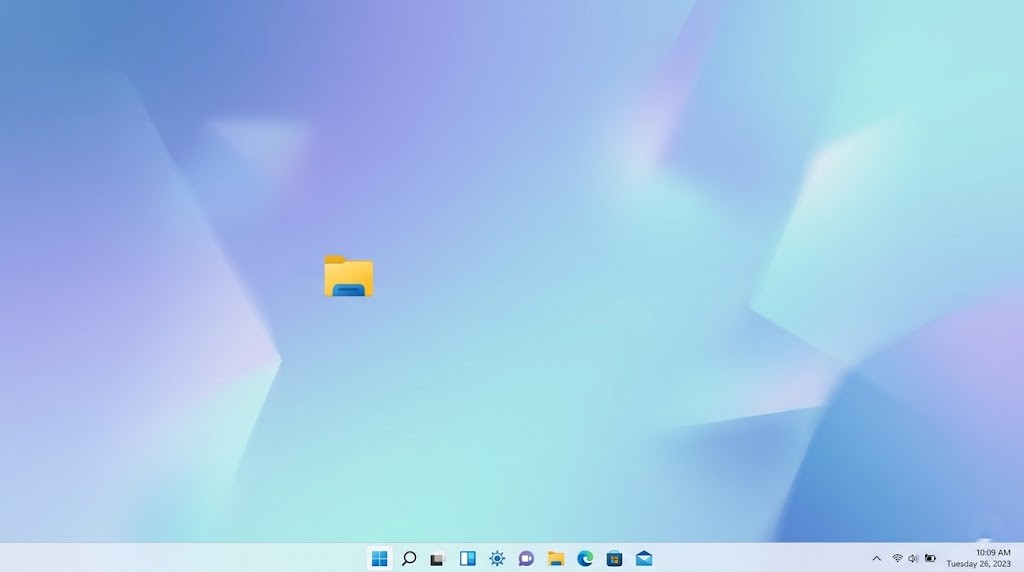
Voila! Your folder icon has now vanished, leaving behind only an empty space. You now have a truly invisible folder with an invisible folder name and icon!
Comprehensive Guide: Creating a Truly Invisible Folder
Let’s put it all together in one seamless process:
- Create a New Folder: Right-click -> New -> Folder.
- Rename to Invisible Name: Right-click the new folder, select “Rename.” Hold Alt, type 0160 on the numeric keypad, then release Alt. Press Enter. (For multiple folders, use additional Alt+0160 presses or unique Unicode invisible characters).
- Access Folder Properties: Right-click your now invisibly named folder and select “Properties.”
- Customize Icon: Go to the “Customize” tab.
- Change Icon: Click “Change Icon…”.
- Select Blank Icon: Scroll horizontally until you find the completely blank icons (usually a few in the middle or towards the end of the standard icon set). Select one.
- Confirm: Click “OK,” then “Apply,” then “OK” again.
Your folder has now fully embraced its cloaking device!
Retrieving Your Invisible Treasures: How to Find Your Hidden Folders
So, you’ve made your folders disappear. How do you find them again?
- Drag-Select: The easiest way is to know the general area where you placed them. Click and drag your mouse to select an area of your desktop or folder window. Invisible folders will become highlighted when selected.
- Memory is Key: Remember their approximate location. Once you hover over or click on the “empty space,” you’ll see a selection box appear, indicating the folder’s presence.
- Search Function: If you remember any content *inside* the folder, Windows Search can still find it. However, the folder itself won’t show up by its invisible name directly in search results by name alone.
Important Considerations: It’s Stealth, Not Fort Knox
While incredibly effective for casual privacy and decluttering, remember these points:
- Not True Security: This method is not a substitute for strong encryption or access control for highly sensitive data. Anyone who knows the trick or actively looks for hidden items can find them.
- Accidental Deletion Risk: Be careful not to accidentally delete or move an invisible folder if you forget its location.
- Content Still Searchable: The files *inside* the invisible folder are still indexed by Windows search and can be found if someone searches for their content or file names.
Conclusion: Embrace the Power of the Unseen
The trick of creating a folder with an invisible folder name and a transparent icon is a timeless gem in the world of Windows customization. It’s a testament to how simple yet clever manipulations can yield surprisingly effective results. Whether you’re aiming for a pristine desktop or just want a subtle layer of privacy for your digital nooks and crannies, this “old but gold” method offers a unique solution.
So go ahead, give it a try! Master the Alt+0160 numpad trick, experiment with Unicode spaces, and enjoy the satisfaction of a truly invisible folder. Your digital space just got a whole lot neater and a little more mysterious.